Text input controls are the most commonly used controls in a web form. They are used to take input from users in the form of text. The user needs to write the input in the given control.
Depending on your requirements, you can define a limit on the characters that can be added to an input control. This limit defines the maximum number of characters a user can enter in the input control.
For example, you can set a limit of 5 characters for a Zip code input control. Similarly, in a description box, you can set a limit of 300 characters.
Setting a limit helps users understand the type of input they need to provide. Also, the user can provide an input that best matches the requirements of the given control.
It is important to provide the character limit control in a user-friendly way.
Below are a few guidelines that can be used to define the character limit for an input control.
- Use a convention of [remaining characters/total characters] along with the input control.
- Display this control as soon as the user clicks inside the text control.
- The numbers are updated as the user starts typing the text.
- When the user reaches the limit, change the color of the remaining characters from grey (default) to orange to red.
- When the limit is exceeded, the remaining characters display ‘0’ in red color.
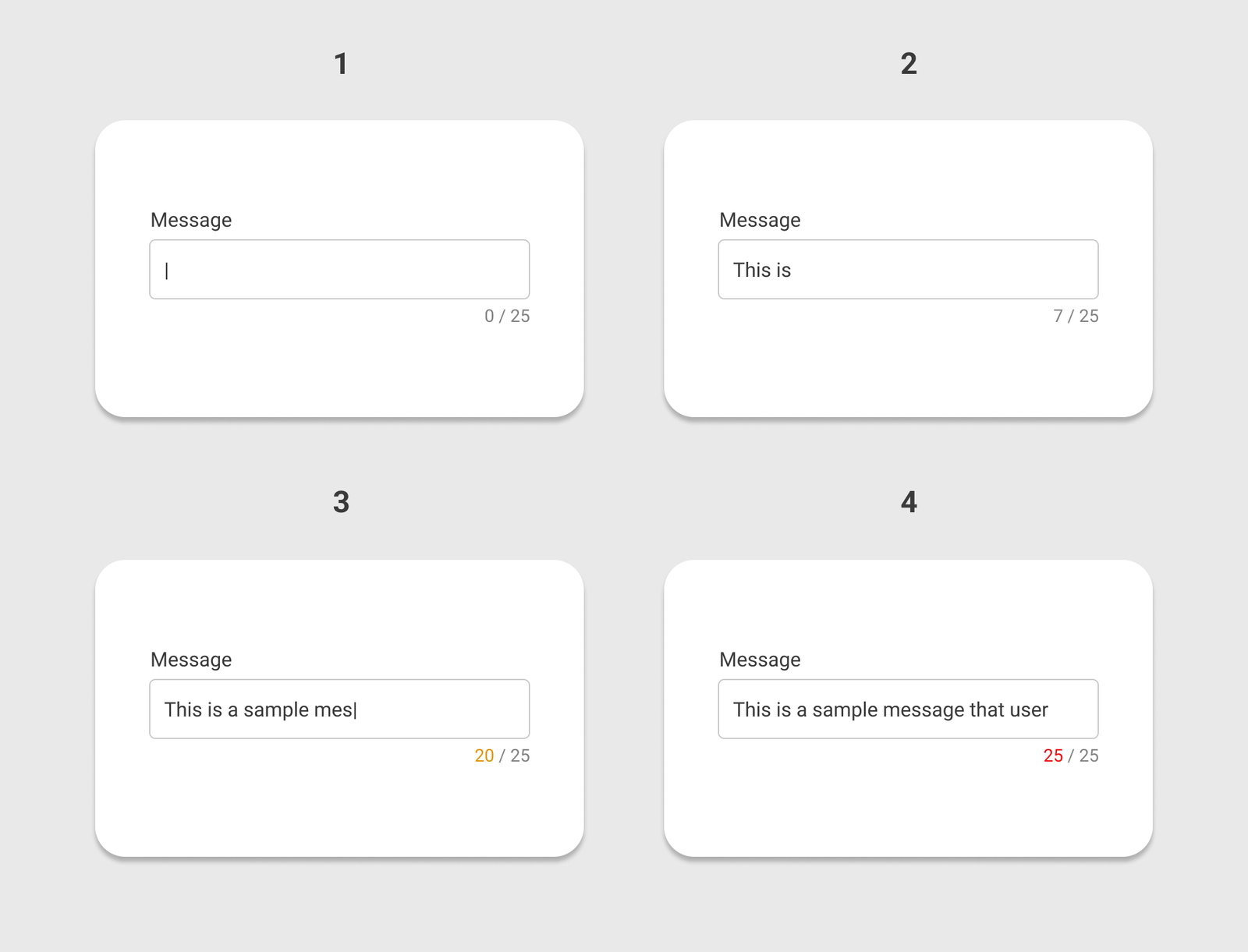
(1) Display the limit control as the user clicks inside the input control. (2) Update the remaining characters as the user starts typing. (3) & (4) Change the color of remaining characters to highlight the limit as the user reaches closer to the total characters.
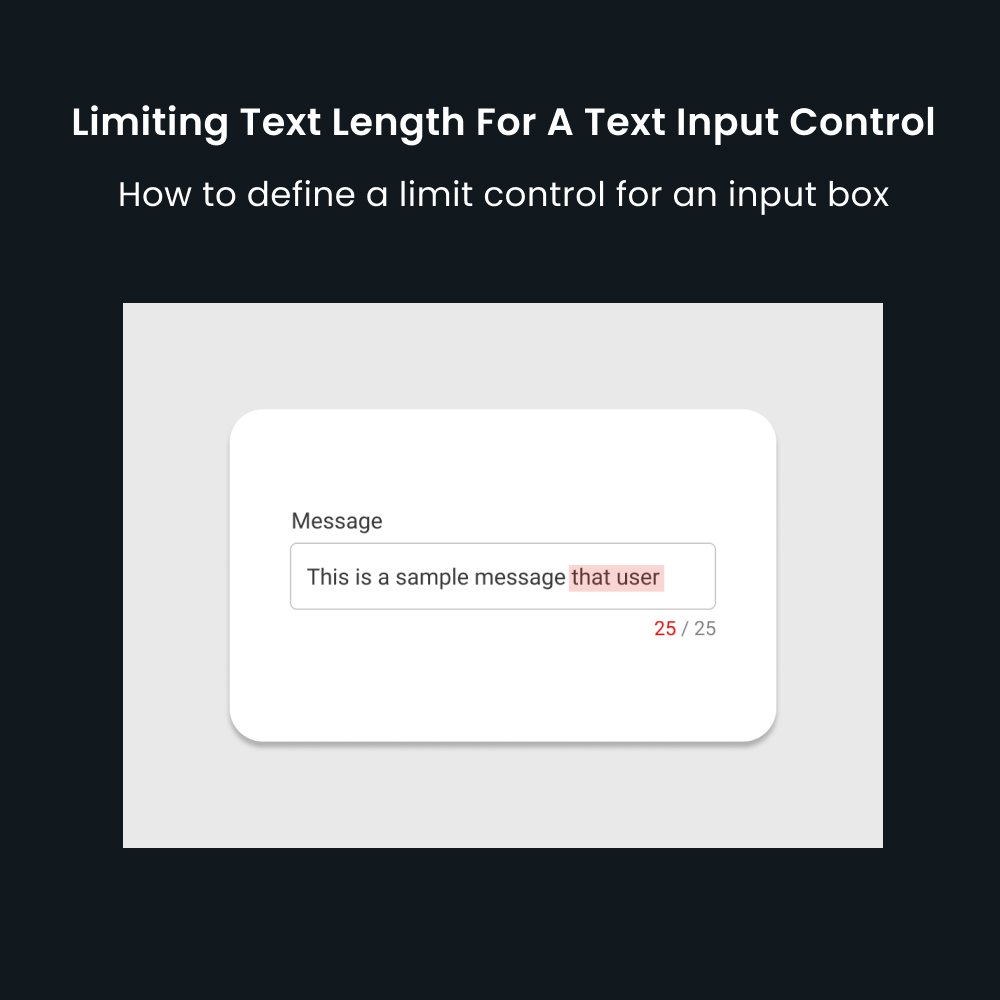
- Don’t prevent users from typing in the text after the limit is exceeded.
- Provide a visual cue by highlighting the additional characters.
- However, restrict the next action until the user removes the additional text.
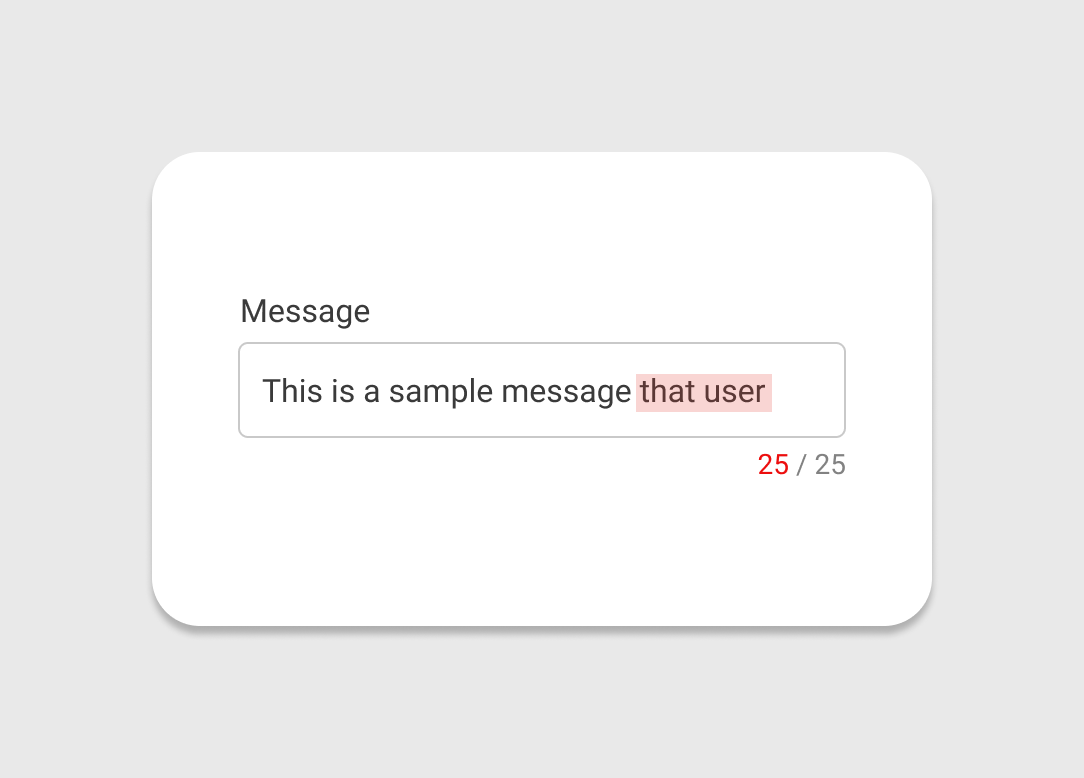
Sometimes, the convention of [remaining characters/total characters] is hard to understand for users.
In that case, you can display a text message along with the input control to indicate the number of remaining characters. For example, ‘25 characters left’.
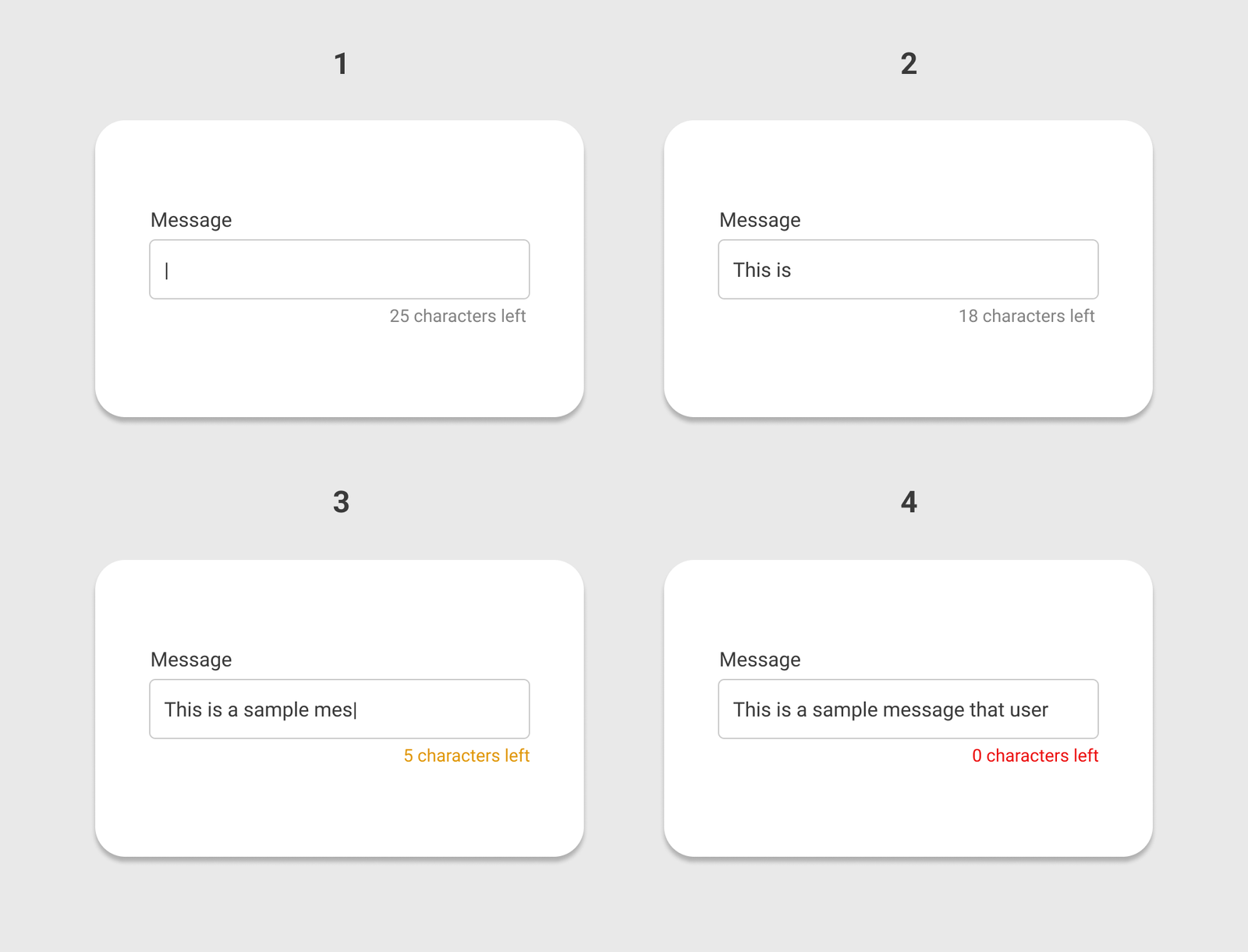
You can use the same convention of changing the color of the message from grey to orange to red as the user reaches closer to the limit.
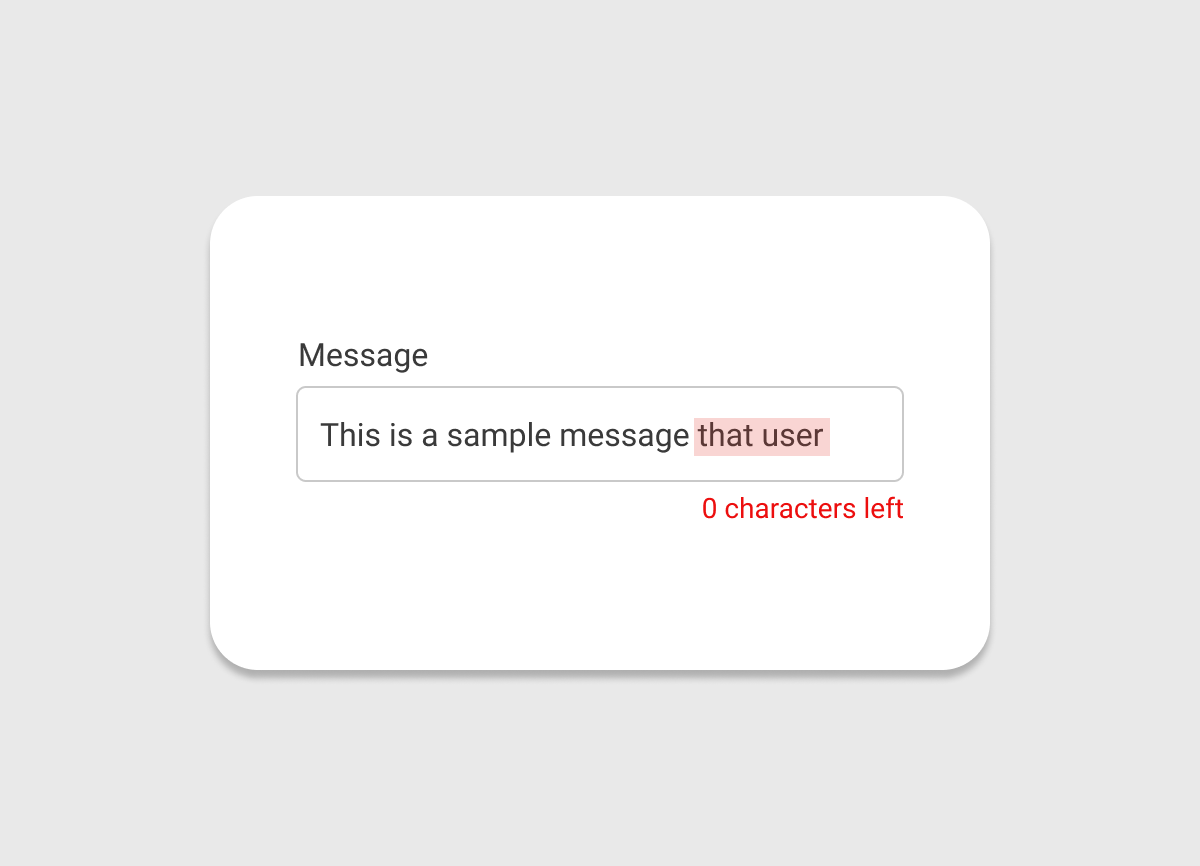
To be more visual, you can use a progress indicator to show the character limit information.
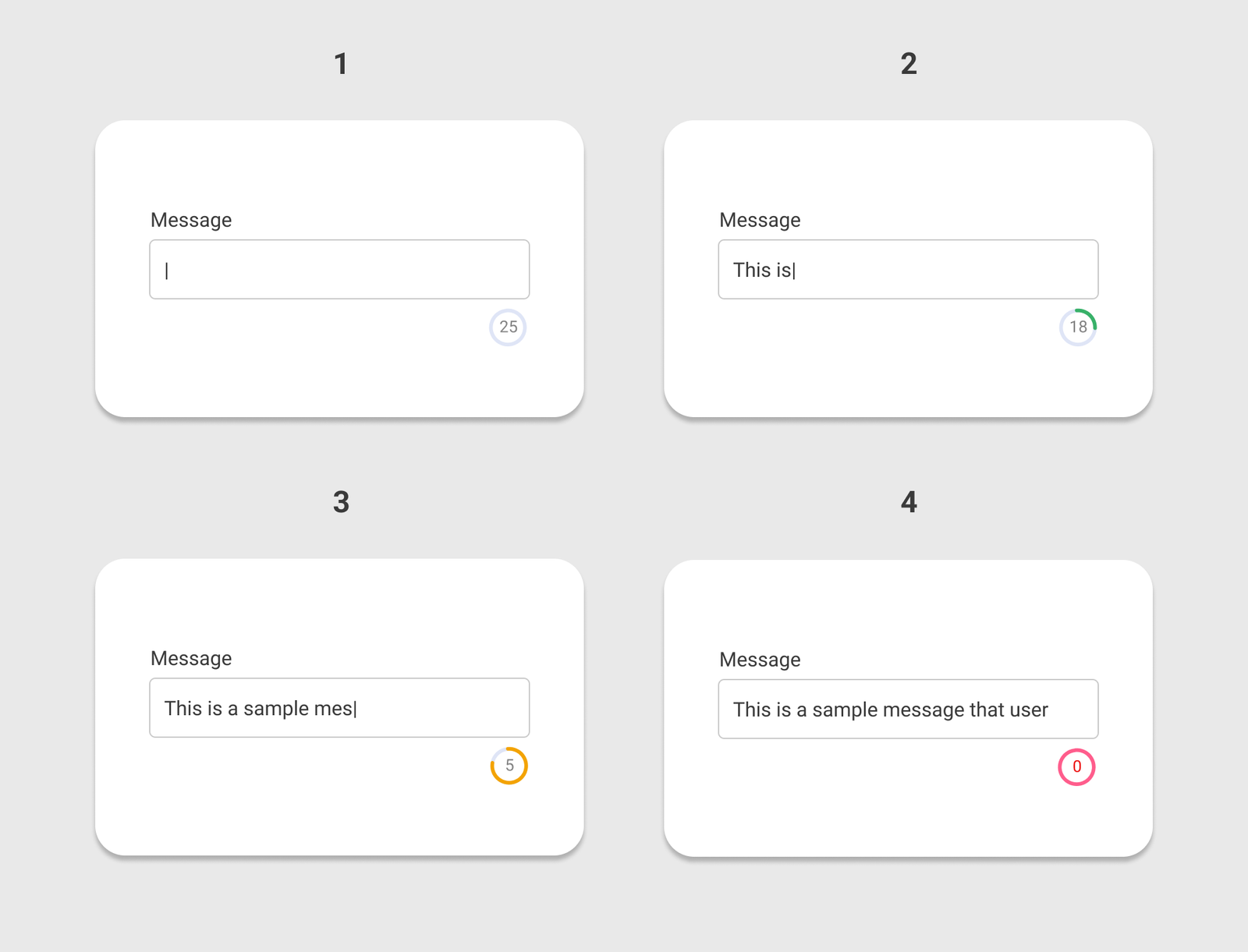
The color of the progress indicator changes as the users reach the limit. Also, the number of characters is displayed inside the progress indicator to inform the users about the remaining characters.
Read more: 8 Tips to Design Better Text Input Controls
Master Your UX Design Skills
Try Interaction Design Foundation (IxDF). IxDF offers online design courses that cover the entire spectrum of UX design, from foundational to advanced levels. As a UX Design World reader, you get 25% off your first year of membership with the IxDF.
Subscribe for more related articles at UX World.
If you have any questions, contact here: Facebook | YouTube | Instagram | LinkedIn